
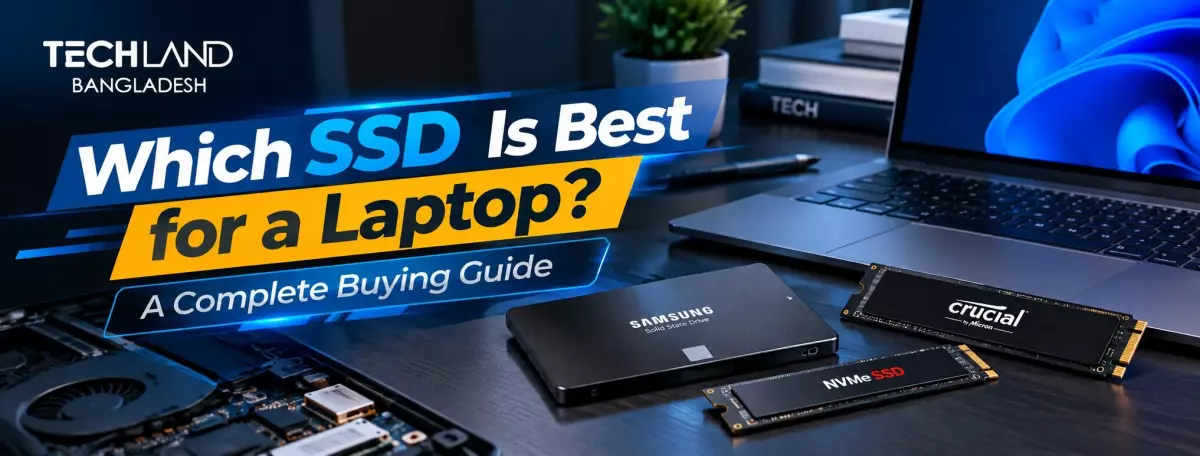
Which SSD Is Best for a Laptop? A Complete Buying Guide
An SSD upgrade is one of the most noticeable improvements you can make to an older laptop, often making it feel like a completely different machine. But with SATA, NVMe, different form factors, and a wide range of capacities, picking the right SSD isn't always straightforward. Before comparing specs, it helps to understand what you actually need faster storage for, since that shapes almost every decision in this guide.
Why You Need a Good SSD
Think about what slows down your laptop day to day. Are you tired of long startup times, apps that take forever to load or a laptop that doesn't seem as snappy as it did when you first bought it? It is not the processor or RAM. A traditional hard drive is the real bottleneck in most cases, especially on laptops a few years old.
An SSD is an electronic device that stores and retrieves data electronically, rather than using spinning mechanical platters, which makes it dramatically faster for everyday tasks like booting up, opening programs, and transferring files. Once you know why you want the upgrade, be it for speed, more storage space, or both, the rest of this guide will be much easier to follow.
Check Your Laptop's SSD Compatibility
Before comparing SSD types, check what your laptop can actually use, because not every SSD works in every laptop. Most laptops from the last several years support a 2.5-inch SATA SSD, an M.2 SATA SSD, or an M.2 NVMe SSD, but older or ultra-thin models sometimes support only one type. Before you buy, check your laptop's manual or online for your exact model to avoid buying an SSD that won't physically fit or work with your motherboard.
Some laptops have a soldered, non-upgradeable drive and no extra slot, so before you spend any money, confirm upgrade support.
SATA vs NVMe: Which Is Better?
Once you know what your laptop supports, the next choice is between SATA and NVMe, as this has a bigger impact on speed than almost anything else. SATA SSDs use an older interface that was originally designed for hard drives, so they are limited to speeds of around 550 megabytes per second. This is still several times faster than a mechanical hard disk drive, though, and is an excellent, cheap upgrade for older laptops.
NVMe SSDs use a much faster interface that can achieve speeds several times faster than SATA, often reaching thousands of megabytes per second on capable laptops. That really matters when you are moving big files, loading intensive applications or working on large project files. The issue is that your laptop's motherboard must support NVMe. If you plug an NVMe drive into a slot that only supports SATA, you won't get the speed benefit of an NVMe drive, and in some cases it won't work at all.
M.2 vs 2.5-Inch SSD
Once you've chosen the interface, form factor comes next, since it determines whether the drive physically fits your laptop. The 2.5-inch form factor looks similar to a small hard drive and fits laptops with a traditional drive bay, connecting via a SATA cable. The M.2 form factor is a small, thin stick that plugs directly into a slot on the motherboard, common in most modern and ultra-thin laptops where there's no room for a traditional drive bay.
M.2 SSDs come in different lengths, most commonly 2280 (80mm long), so it's worth checking your laptop's supported length before buying, since a longer or shorter drive won't fit the available slot.
Choosing the Right SSD Capacity
After form factor and interface, the next real decision is capacity. For basic use focused on the operating system, a few programs, and light file storage, 256GB is fine, but it fills up quickly with modern software, updates, and media. 512GB is enough for most everyday users, with the operating system, a few applications, and a decent media library stored without needing regular cleanups.
For those working with large files, such as video editing, gaming modern titles, or large photo libraries, 1TB or more spares you the hassle of constantly managing storage space. Buying more capacity than you need now also gives your laptop more room to grow as your storage needs increase over time.
SSD Read and Write Speeds
Now that you've chosen capacity, it helps to understand what the read and write speed numbers on an SSD's packaging actually mean. Read speed determines how fast your laptop can access existing data. For example, when you start up a program or load a level in a game. Write speed determines how fast the drive writes new data. For example, when you copy files to the drive or save a large project.
In most everyday use, the specific numbers are less important than the general tier, SATA vs NVMe, as the real-world performance differences within the same tier are often smaller than marketing would have you believe. If you're doing heavy, sustained workloads like copying large video files, you care more about the specific write-speed numbers.
Endurance and DRAM Cache
If you plan to keep your SSD for years, two other details are worth checking besides raw speed. Endurance, expressed as TBW (terabytes written), is a rough estimate of how much total data the drive can write over its life before performance or reliability starts to degrade. If you use your PC a lot daily – moving large files around often or gaming a lot – then a higher TBW rating is more important.
The DRAM cache (found on more expensive SSDs) helps the drive manage data better and maintain more consistent performance during heavy or continuous use. Budget SSDs without a DRAM cache still do a good job for everyday tasks, but may show more noticeable slowdowns during large, continuous file operations.
Choosing an SSD Within Your Budget
With the interface, form factor, capacity and performance tier all locked in, budget is the last piece of the puzzle. SSD prices range from cheap SATA drives to expensive, fast NVMe drives with large capacities. Higher prices usually mean faster speeds, higher endurance, and DRAM cache for more consistent performance. However, a mid-range SATA or entry-level NVMe drive is still a huge upgrade from a traditional hard drive for most everyday laptop use. Don't buy the highest-spec drive on the shelf; match your budget to the priorities you listed earlier in this guide.
TechLand BD offers a range of SATA and NVMe SSDs to fit different budgets and needs, making it easier to find the right upgrade for your laptop.
FAQ
Will any SSD work in my laptop?
Not necessarily. Your laptop needs to support the specific interface and form factor of the SSD you're buying, whether that's SATA, NVMe, 2.5-inch, or M.2. Checking your laptop's exact model specifications before buying avoids compatibility issues.
Is NVMe always better than SATA for a laptop?
NVMe is significantly faster, but only if your laptop's motherboard actually supports it. For laptops that only support SATA, a SATA SSD is still a massive upgrade over a traditional hard drive, even without NVMe speeds.
Where can I buy a good quality SSD for my laptop in Bangladesh?
TechLand BD carries a wide range of SATA and NVMe SSDs across different capacities and budgets, with genuine products and proper warranty support. Their team can help you find one that's actually compatible with your laptop.
Does TechLand BD offer warranty support on SSDs?
Yes, SSDs purchased through TechLand BD come with proper warranty support, which is worth checking no matter which seller you're buying from.
Discussion
0Leave a Comment
No comments yet
Be the first to share your thoughts
